Add / Update
Subscribing is a simple and required step to start using Cloud Plans properly. When a Organization starts has 3 free resources and one plan to try our features (it means up to 3 resources and 3 credentials). But if you already tested CS and want to integrate more resources, you will need to subscribe to a plan. The subscriptions are fully fixed to your needs as you can set as many resources as you need (CP don't work with fixed packs). The unit/price depends on the quantity you subscribe and it is billed in steps using the following Pricing table: https://www.cloudsscheduler.com/index.html#pricing
Steps
- Select an Organization
- Click Billing in the left menu
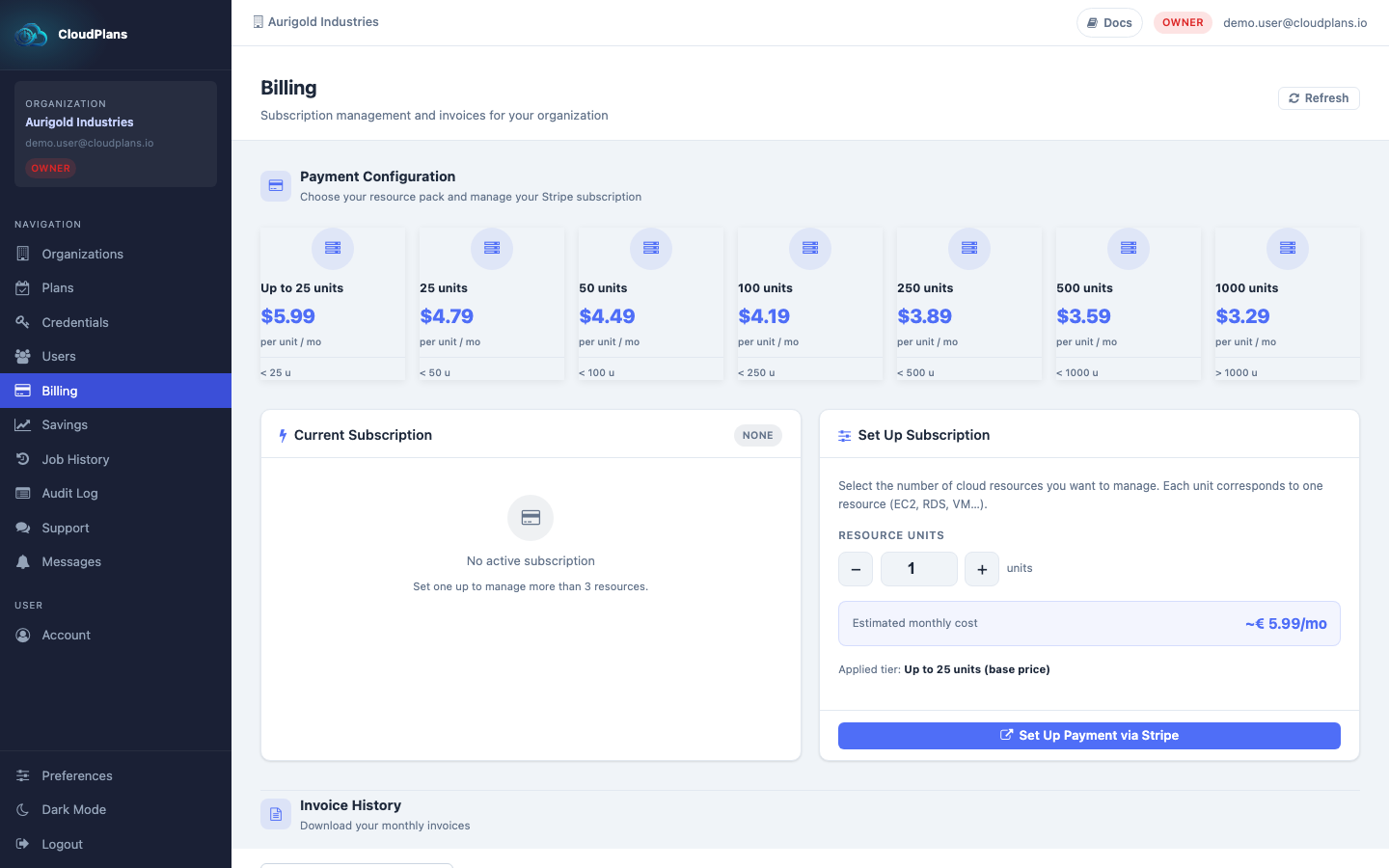
- The page shows the pricing tiers at the top and, below, the Current Subscription card (empty if you have no subscription yet) and the Set Up Subscription card. In Resource Units set the number of resources you want to manage (the "Quantity" of your subscription, the main configuration of it). The card shows the estimated monthly cost and the pricing tier applied.
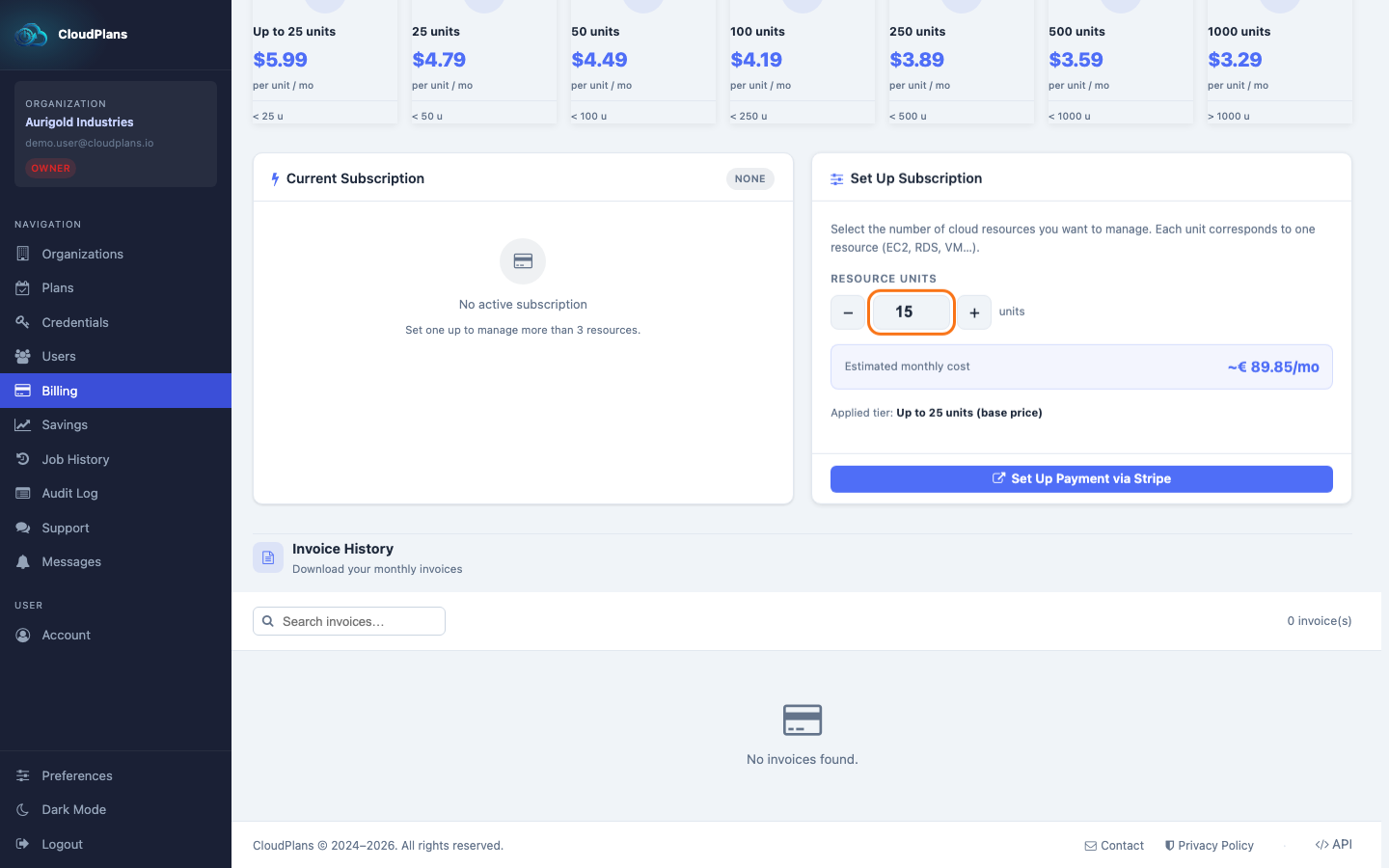
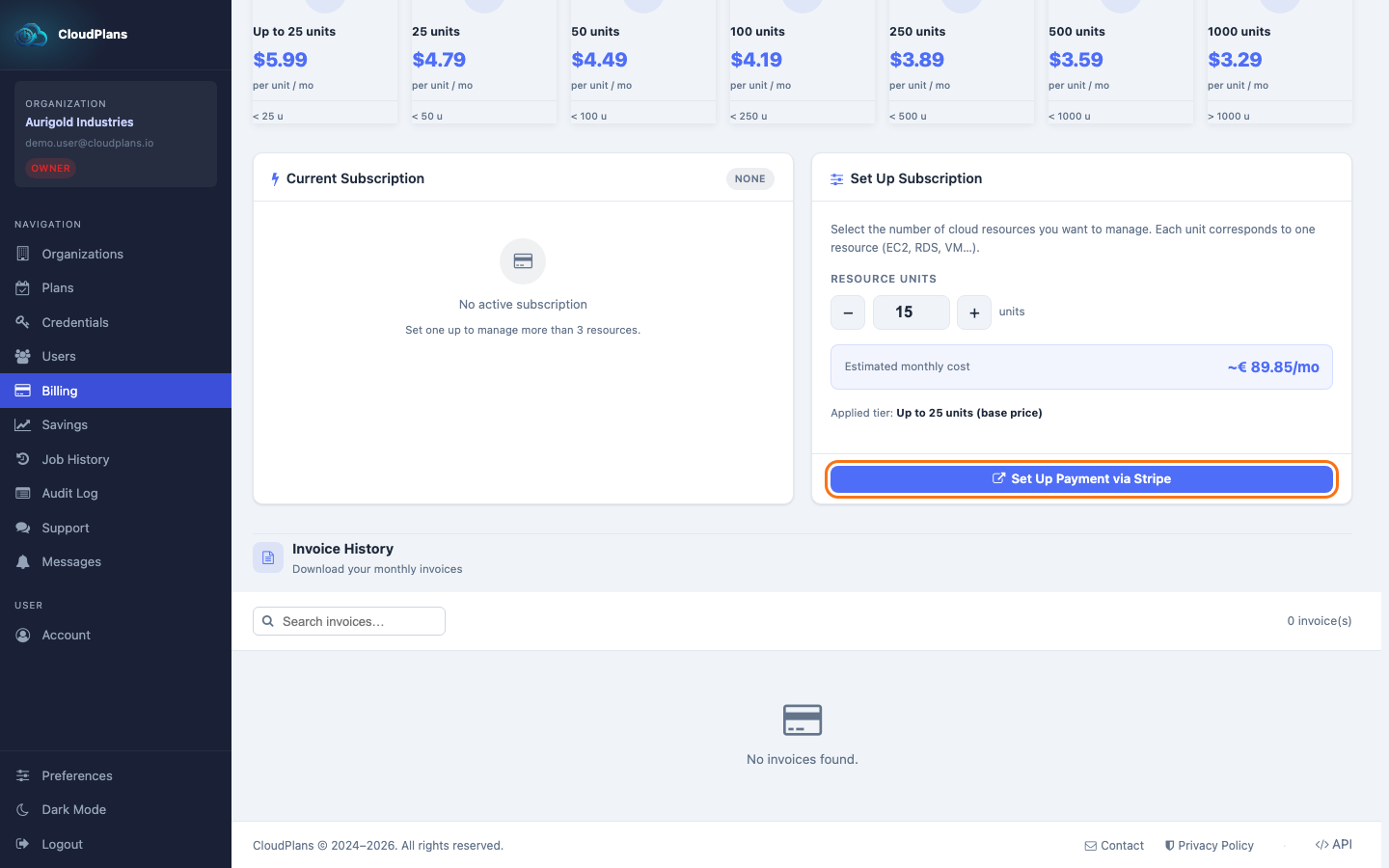
- Click Set Up Payment via Stripe. You will need to allow pop-up tabs in your browser, as a Stripe form opens in a new tab.
- Select Card or SEPA Direct Debit and provide any data needed
- Click on \
and wait until the Stripe confirmation - In a few minutes you will have enabled your subscription in your Organization and it will be possible to use as many resources as you subscribed for.
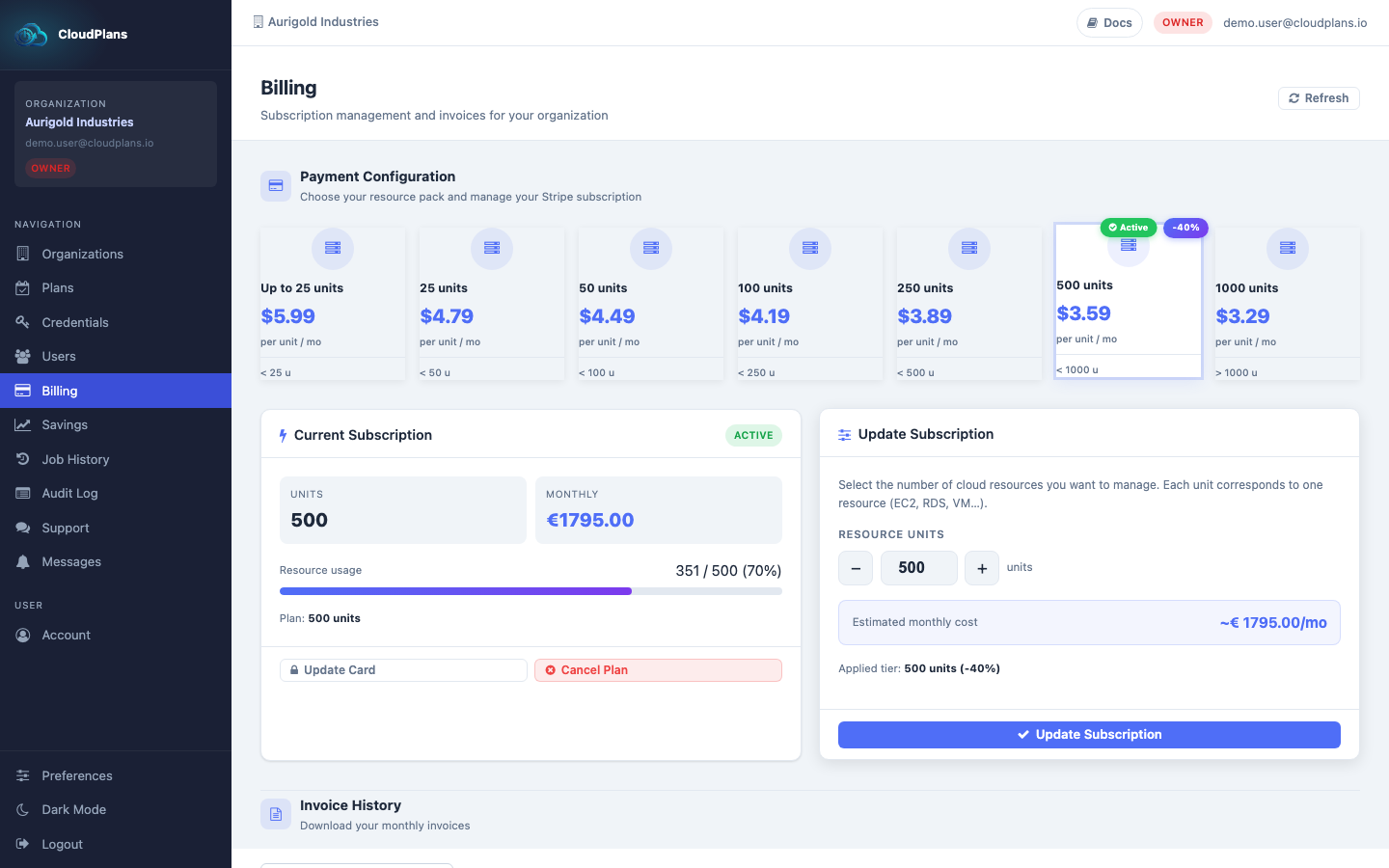
As shown above, the Billing page now shows your current Subscription (units, monthly price and resource usage).
Updates
“When downgrading a subscription, the current usage of your subscription resources will be verified beforehand. If your organization exceeds the resource limits of the new subscription plan, the update operation will be declined. To proceed, you must reduce the number of resources to align with the limits of the new subscription plan. Additionally, if you update a plan, the proration will be applied immediately, and you will be charged accordingly.”
Payment Method
When you have a Subscription, and wanted to change the payment method (maybe you have a near to expiration Card, or your Organization Financial changed the Bank Account for projects..., you can always change the payment method.
- Go to Billing
- Click Update Card in the Current Subscription card. Stripe opens in a new tab, and there you will be able to change the Credit/Debit Card or set SEPA Direct Debit
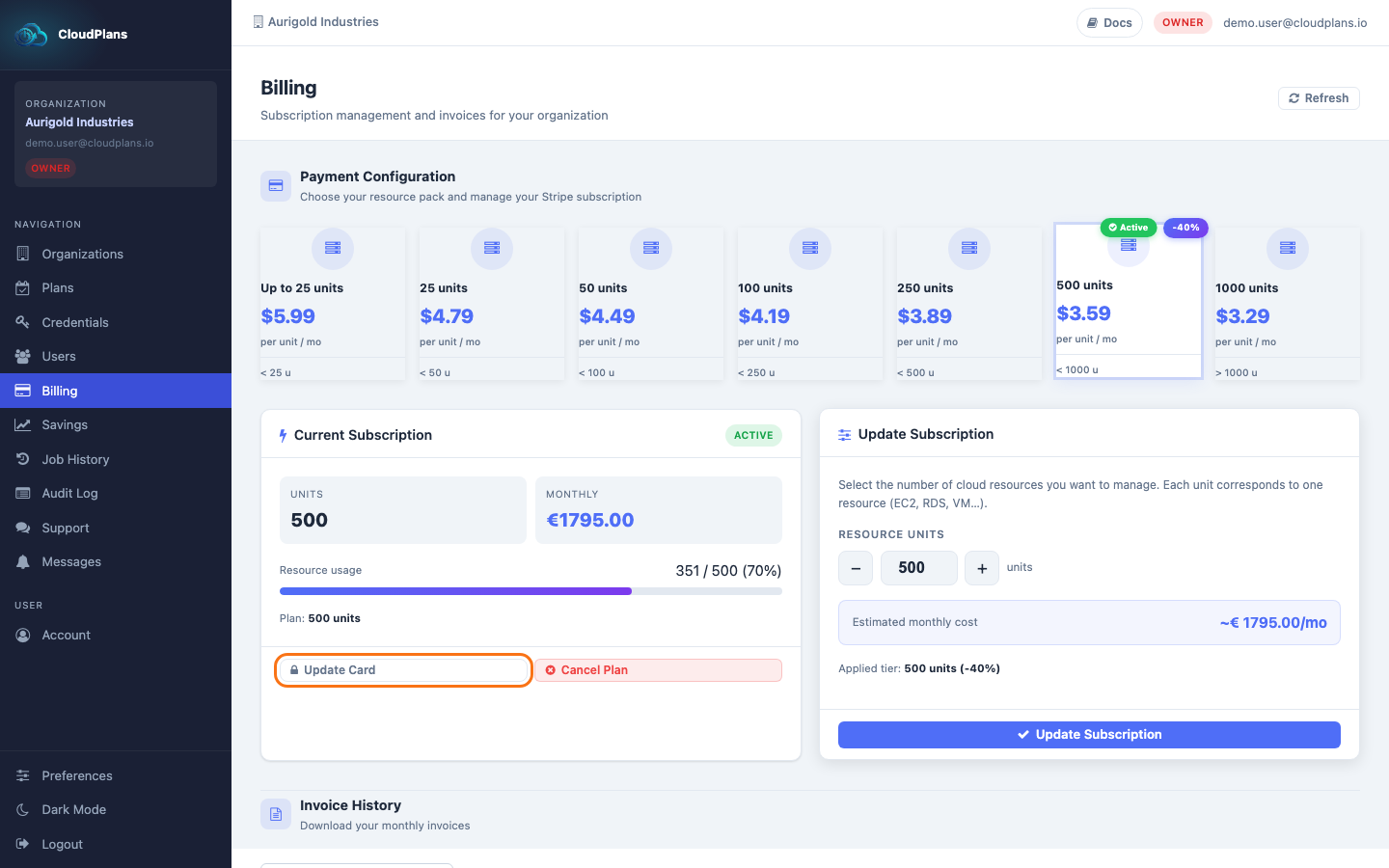
- The rest of the steps are exactly the same and you will be billed just in your normal period
Update Subscription (Resources Subscribed)
When your business changes Cloud Plans can change with you. It is possible at any time to update the number of resources subscribed for. You will be billed (detailed in the parent topic) for the proration inmediately and the rest in your normal billing period. To change your subscription:
- Go to Billing
- In the Update Subscription card, change the Resource Units with the − / + buttons. The card shows the estimation of the new monthly cost and the applied tier
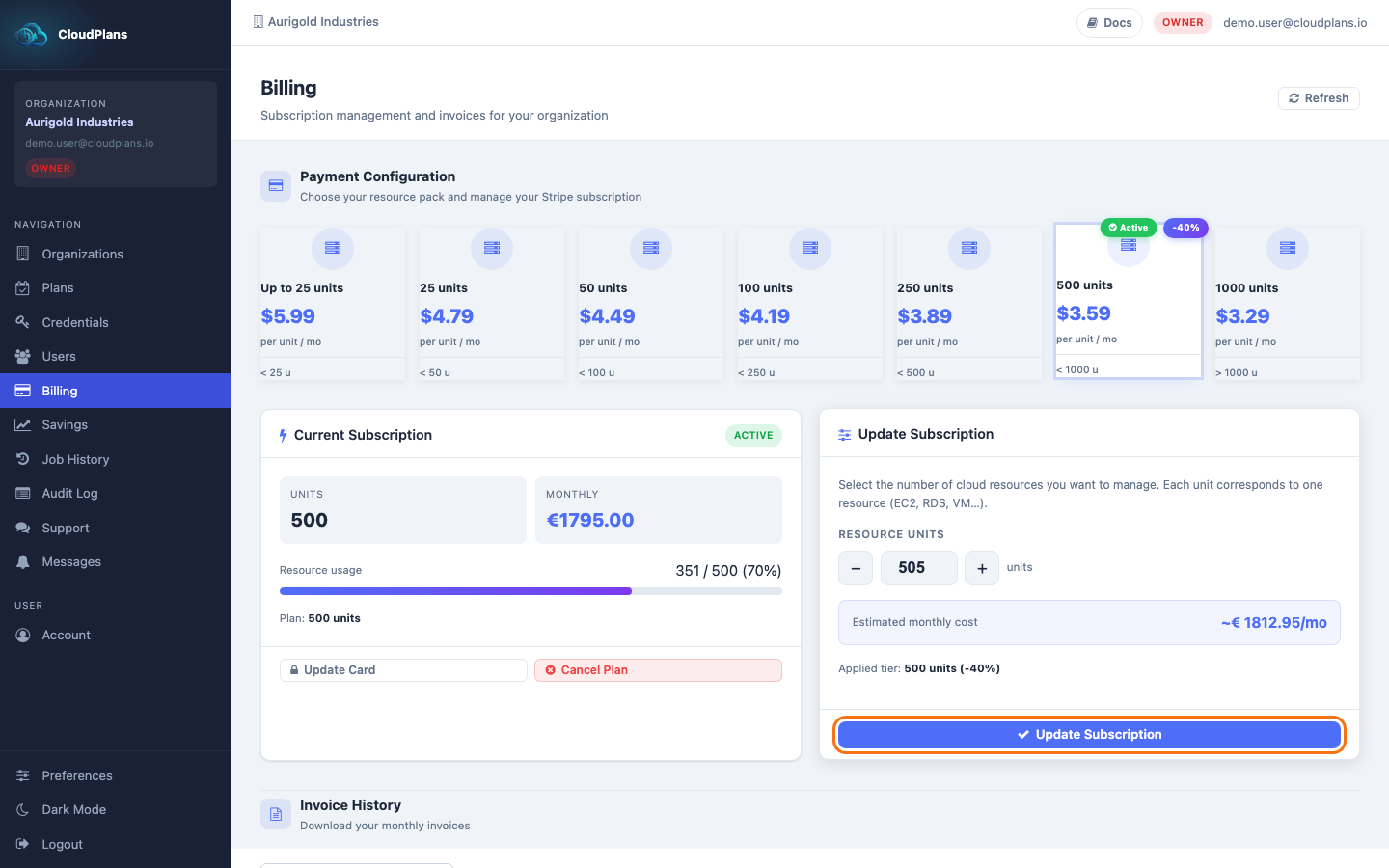
- Click Update Subscription. As explained before, the current consumed resources will be billed and the rest of the current period will be billed as normal.