Organization security (MFA per operation)
Besides protecting your own account with MFA, an owner or admin can require Multi-Factor Authentication for specific kinds of operations inside an Organization. This adds a granular layer of security: members must have MFA enabled on their user account to perform the selected operations.
Configure it
- Go to Organizations.
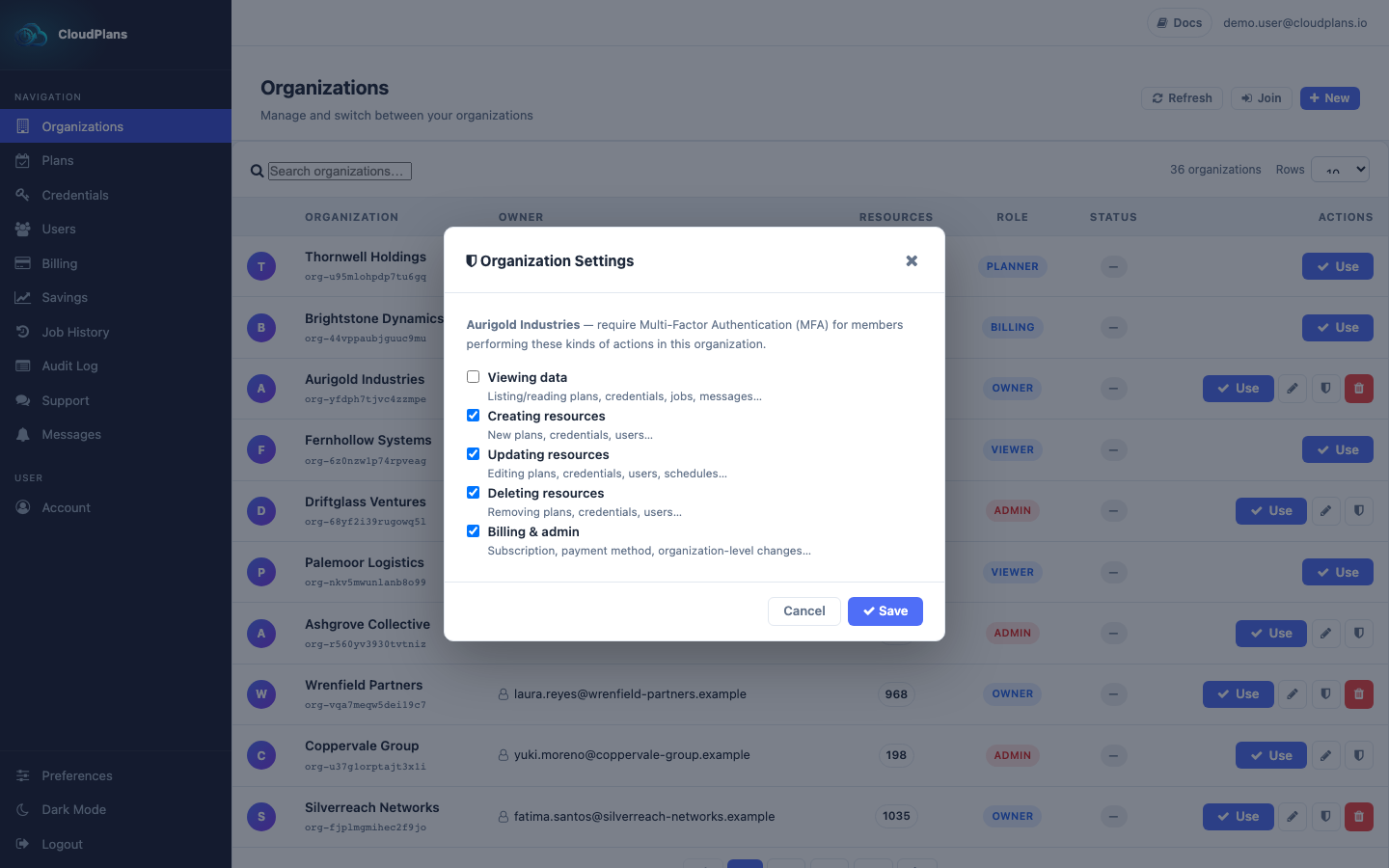
- On the row of your Organization, click the shield icon (visible only to owners and admins).
- Tick the operations that must require MFA and click Save.
| Operation | What it covers |
|---|---|
| Viewing data | Listing and reading plans, credentials, jobs, messages. |
| Creating resources | New plans, credentials, users. |
| Updating resources | Editing plans, credentials, users, schedules. |
| Deleting resources | Removing plans, credentials, users. |
| Billing & admin | Subscription, payment method and organization-level changes. |
A member without MFA who tries one of the selected operations receives an MFA needed error. They can enable it from Account and retry.
The MFA recommendation banner
When you select an Organization and your user account does not have MFA enabled, a banner appears at the bottom of the console recommending it. MFA is a property of your user, not of the Organization, but enabling it protects every Organization you belong to.
- Enable MFA takes you to Account and opens the MFA setup.
- Not now hides the banner for the current Organization until your next session or until you switch Organization. It comes back until MFA is enabled.