Horizontal and vertical scaling
A Plan does not only start and stop servers. Every element of a Plan uses one of three operations, so you can also save money on services that cannot (or should not) be powered off, by changing their capacity or their size on the Plan schedule:
| Operation | Console name | What the Plan does | During ON hours | During OFF hours |
|---|---|---|---|---|
| Start / stop | Power On/Off (start/stop) | Starts and stops the resource | Started | Stopped |
| Horizontal scaling | Horizontal Scaling (capacity) | Changes how many instances/nodes/replicas the service runs | ON min/max capacity | OFF min/max capacity |
| Vertical scaling | Vertical Resize (instance type/class) | Changes how big the resource is, without powering it off | A bigger type/class/size | A smaller, cheaper one |
The same schedule, time zone and exceptions of the Plan apply to the three of them, and you can mix all of them in the same Plan.
Choosing the operation
When you add an element (how to add elements), the first field of the Add Element form is Operation. It decides which services appear in Service Type and which fields are asked next.
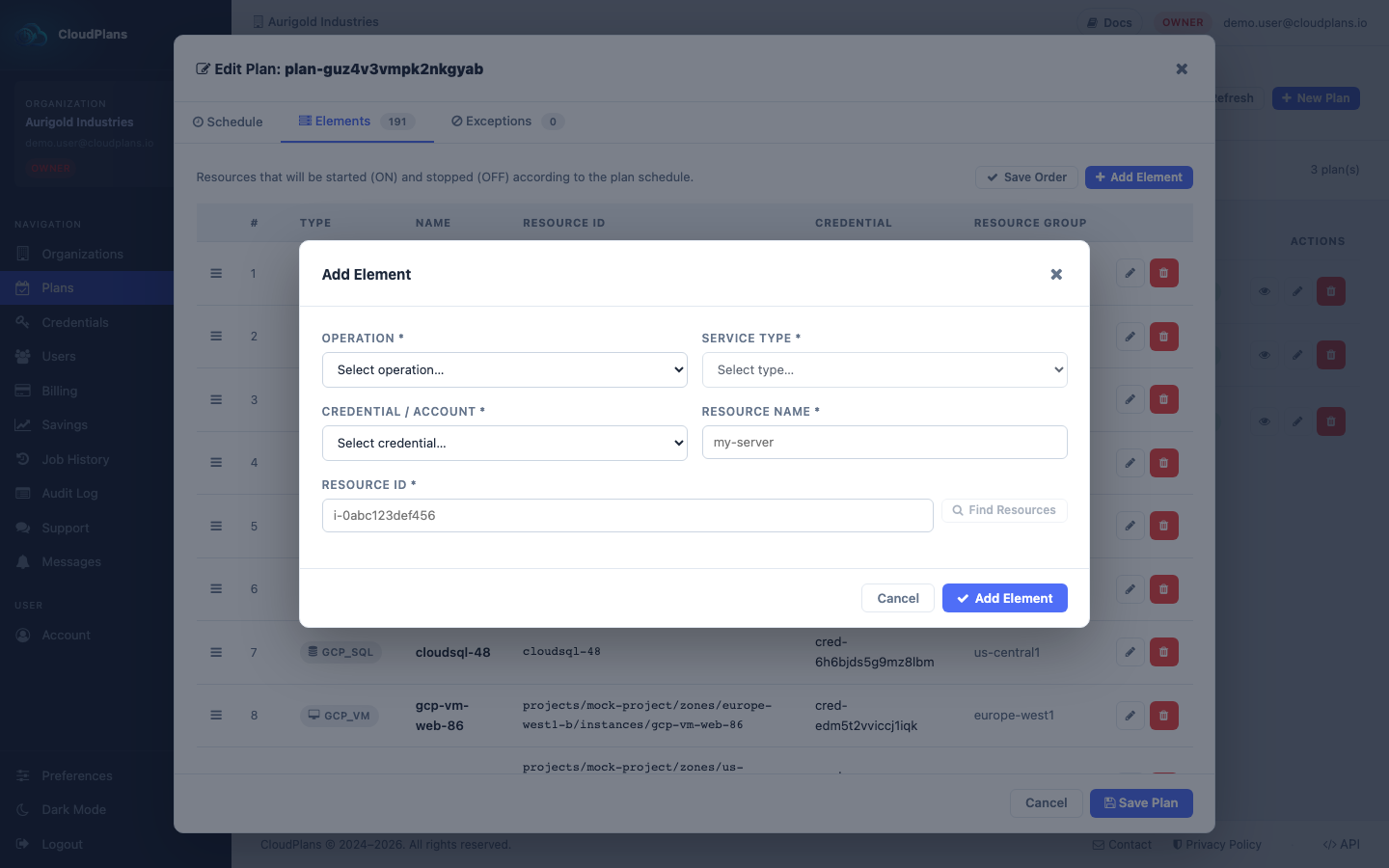
Start / stop
The classic operation: the resource is started when the schedule is ON and stopped when it is OFF. Fill in the credential, resource name, resource ID and region (or resource group).
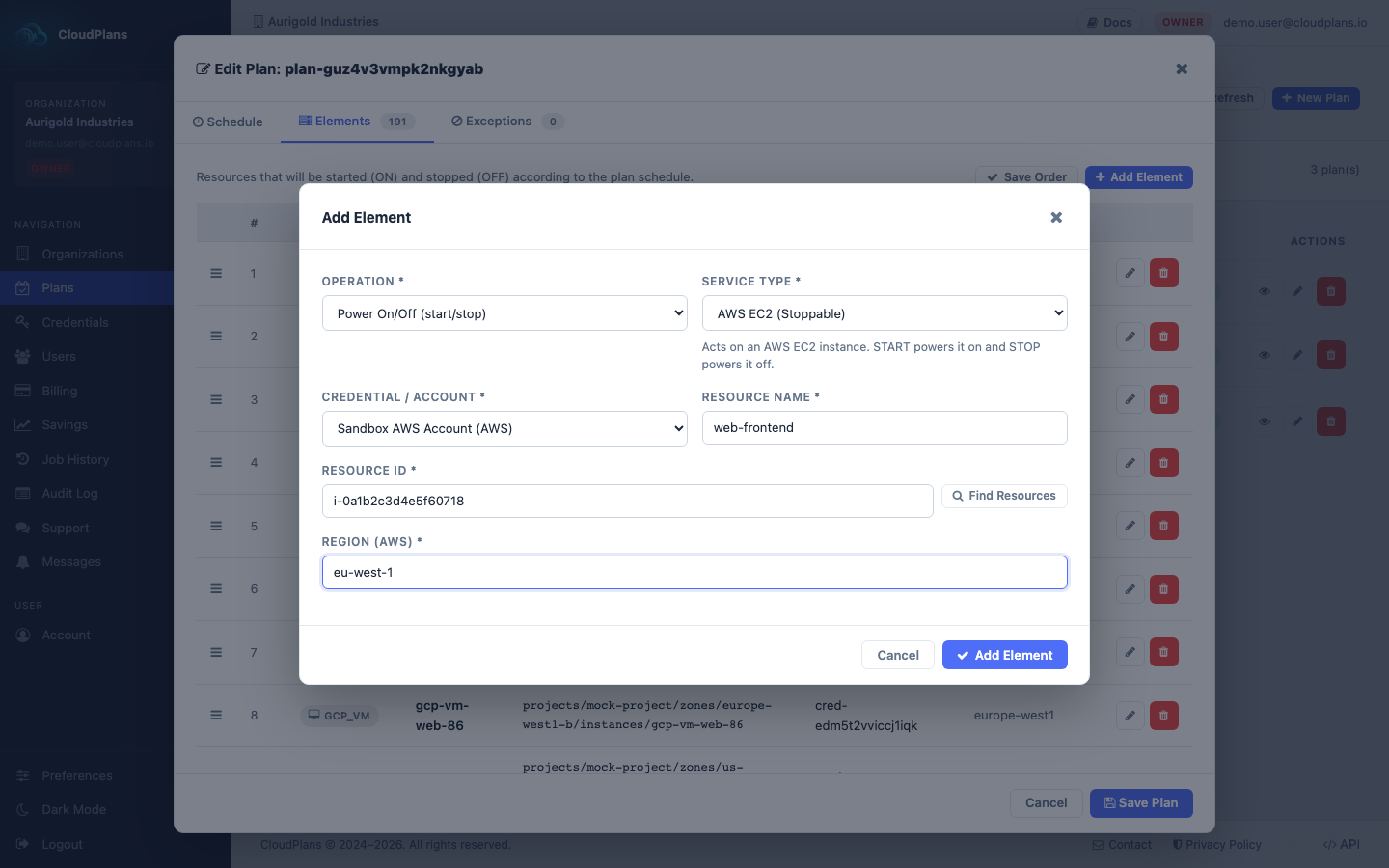
Horizontal scaling (capacity)
For services that run several instances, nodes, tasks or replicas, the Plan changes the capacity range instead of switching the service off. You set four values:
- ON Mode Min Resources and ON Mode Max Resources (minimum 1): the capacity while the Plan is ON.
- OFF Mode Min Resources and OFF Mode Max Resources (minimum 0): the reduced capacity while the Plan is OFF.
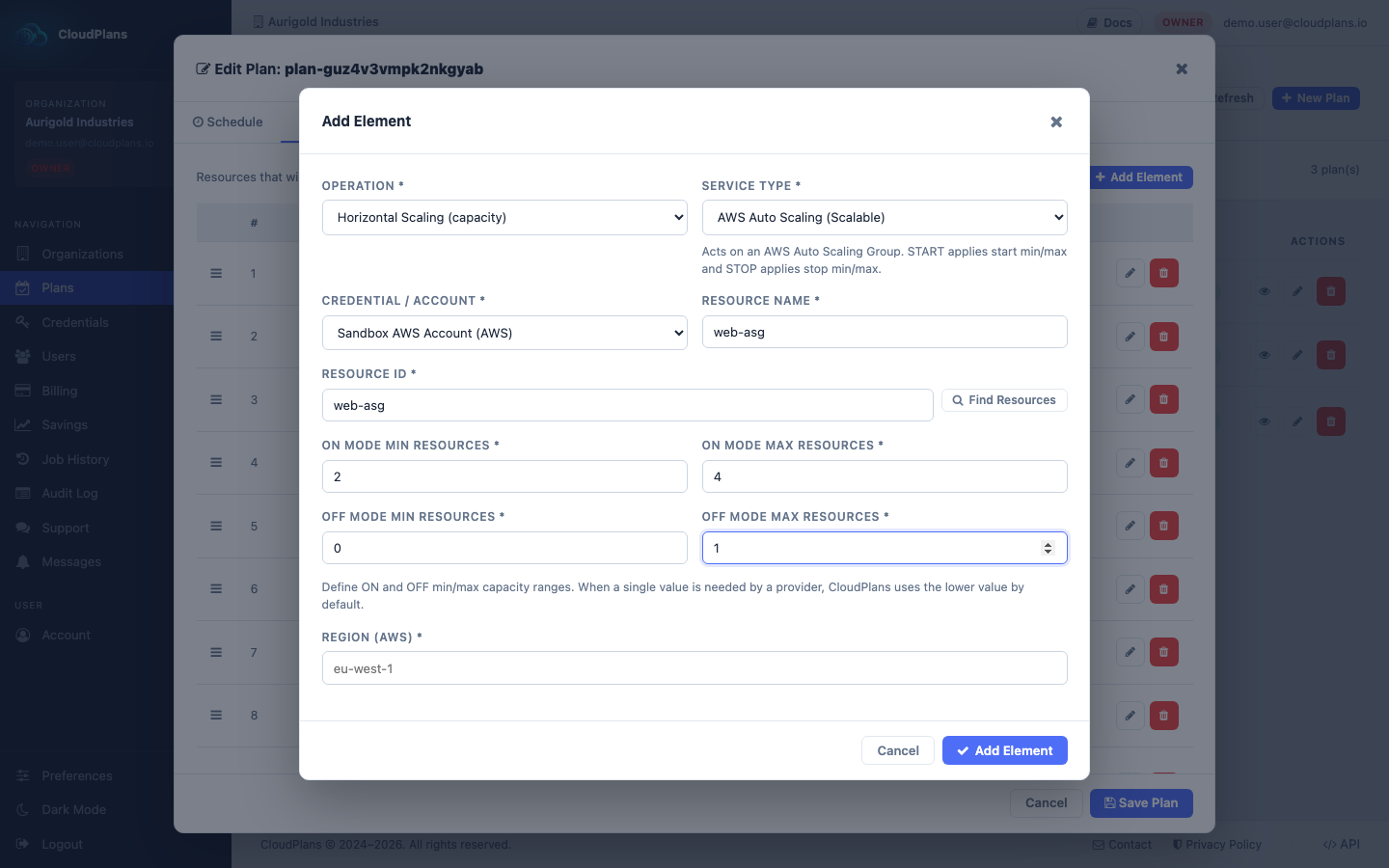
When a provider only accepts a single value (for example a node count), CloudPlans uses the lower value of the range.
Services available for horizontal scaling:
| Cloud | Service | What happens on START / STOP |
|---|---|---|
| AWS | Auto Scaling Group (ASG) |
START applies the ON min/max, STOP applies the OFF min/max |
| AWS | EKS | Worker capacity through Auto Scaling: normal capacity ON, reduced capacity OFF |
| AWS | ECS | Service/cluster capacity through Auto Scaling: scaled up ON, scaled down OFF |
| AWS | Fargate | Desired tasks scaled up ON and down OFF |
| AWS | Elastic Beanstalk | Environment capacity: normal ON, reduced OFF |
| AWS | SageMaker endpoint | START restores the configured instance count per variant, STOP reduces it to 0. The endpoint is not deleted or recreated |
| Azure | AKS | Agent pool node count: normal ON, reduced OFF |
| Azure | VM Scale Set (VMSS) |
Instance capacity: normal ON, reduced OFF |
| Azure | App Service Plan (SP) |
Worker capacity: normal ON, reduced OFF |
| Azure | ML Online Endpoint | START restores the configured instance count, STOP scales it to 0. The deployment is not deleted or recreated |
| GCP | GKE | Node pool/cluster capacity: normal ON, reduced OFF |
| GCP | Vertex AI endpoint | START restores the configured minimum replica count, STOP scales it to 0. The deployment is not deleted or recreated |
Vertical scaling (resize)
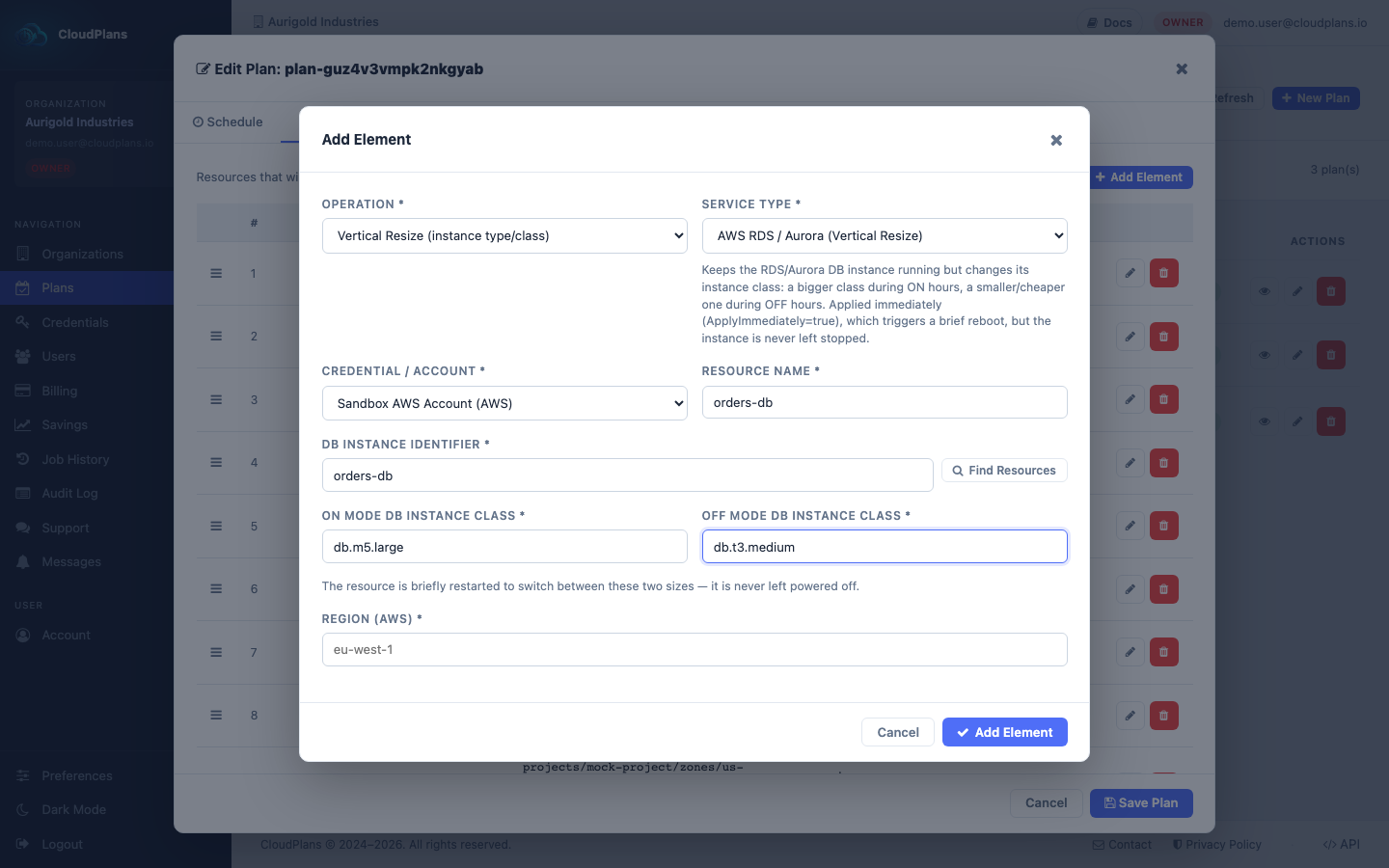
For resources that must stay available (databases, brokers, caches, VMs you cannot leave stopped), the Plan resizes them: a bigger type during the ON hours and a smaller, cheaper one during the OFF hours. The resource is never left powered off. Instead of capacity, you set two values:
- ON Mode size, the one used while the Plan is ON.
- OFF Mode size, the one used while the Plan is OFF.
The name of the field depends on the service: Instance Type, DB Instance Class, Host Instance Type, VM Size, Machine Type, Cache Node Type, RCU/WCU, Messaging Units or Throughput (RU/s).
Services available for vertical scaling:
| Cloud | Service | How the resize is applied |
|---|---|---|
| AWS | EC2 | Changes the instance type. AWS needs a brief stop + start to apply it, so there is a short restart, but the instance is never left powered off |
| AWS | RDS / Aurora | Changes the DB instance class, applied immediately (ApplyImmediately), which triggers a brief reboot. The instance is never left stopped |
| AWS | Amazon MQ | Changes the broker host instance type. The broker is rebooted (brief connection interruption) and never left stopped |
| AWS | ElastiCache | Changes the node type of the replication group, applied immediately with a brief reboot. It is never left stopped |
| AWS | DynamoDB (provisioned mode) | Changes the read/write capacity units: higher ON, lower OFF. The table is never deleted or recreated |
| Azure | Virtual Machine | Changes the VM size. Azure needs the VM to be deallocated to resize it, so there is a short restart, but it is never left powered off |
| Azure | Service Bus Premium | More messaging units ON, the minimum (1) OFF. The namespace is never deleted or stopped |
| Azure | Cosmos DB (provisioned throughput) | Higher RU/s ON, lower OFF. The database is never deleted or stopped |
| Azure | MySQL / PostgreSQL Flexible Server | Changes the SKU (tier + compute size): bigger ON, smaller OFF. Never stopped, only resized |
| GCP | Compute Engine VM | Changes the machine type. GCP needs the instance to be stopped to change it, so there is a short restart, but it is never left powered off |
Resizing some services restarts or reboots them for a few moments (see the table above). Choose the hour of the change with that in mind, exactly as you would do with a manual maintenance.
Step by step
- Select the Organization and open the Plan in edit mode (steps are here).
- Go to the Elements tab and click Add Element.
- Choose the Operation (Power On/Off, Horizontal Scaling or Vertical Resize).
- Choose the Service Type and the Credential / Account of the cloud account where the resource lives.
- Fill in the Resource Name and the Resource ID (use Find Resources to pick it from your account).
- Fill in the Region (AWS) or Resource Group (Azure).
- Fill in the ON/OFF capacity (horizontal) or the ON/OFF size (vertical).
- Click Add Element at the bottom of the form and then Save Plan.
The complete list of services, including the start/stop ones, is in Supported services.