Update
- When it is a Plan created. Edit it to add elements or changes in timezone, start time, duration and state.
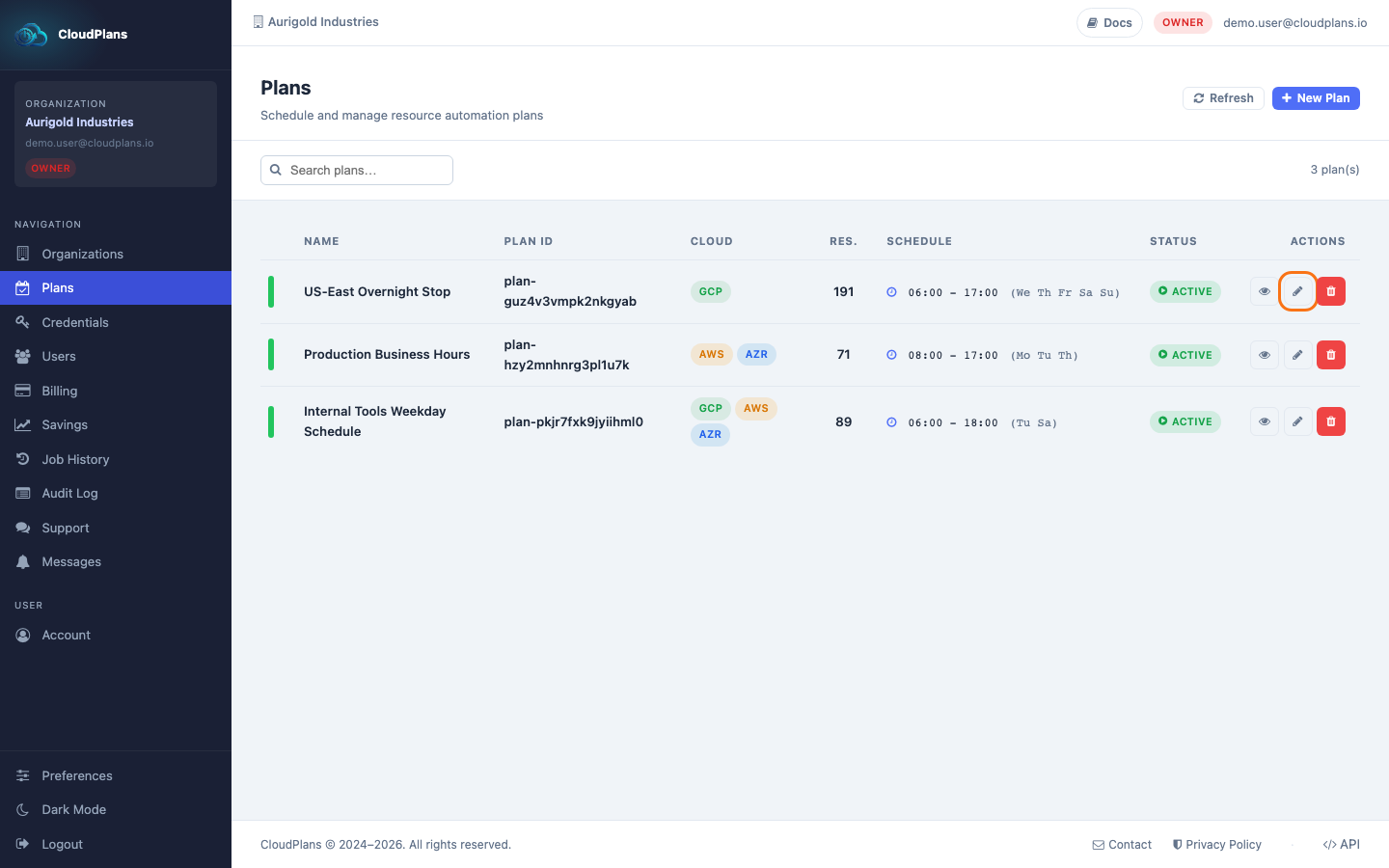
- First go to Plans in the left menu
- Click the pencil (Edit) icon on the right side of the Plan (the eye icon only opens it in read-only mode)
- The Plan editor opens with three tabs: Schedule (name, state, timezone, description, start time, duration in hours and active days), Elements (the resources of the Plan) and Exceptions.
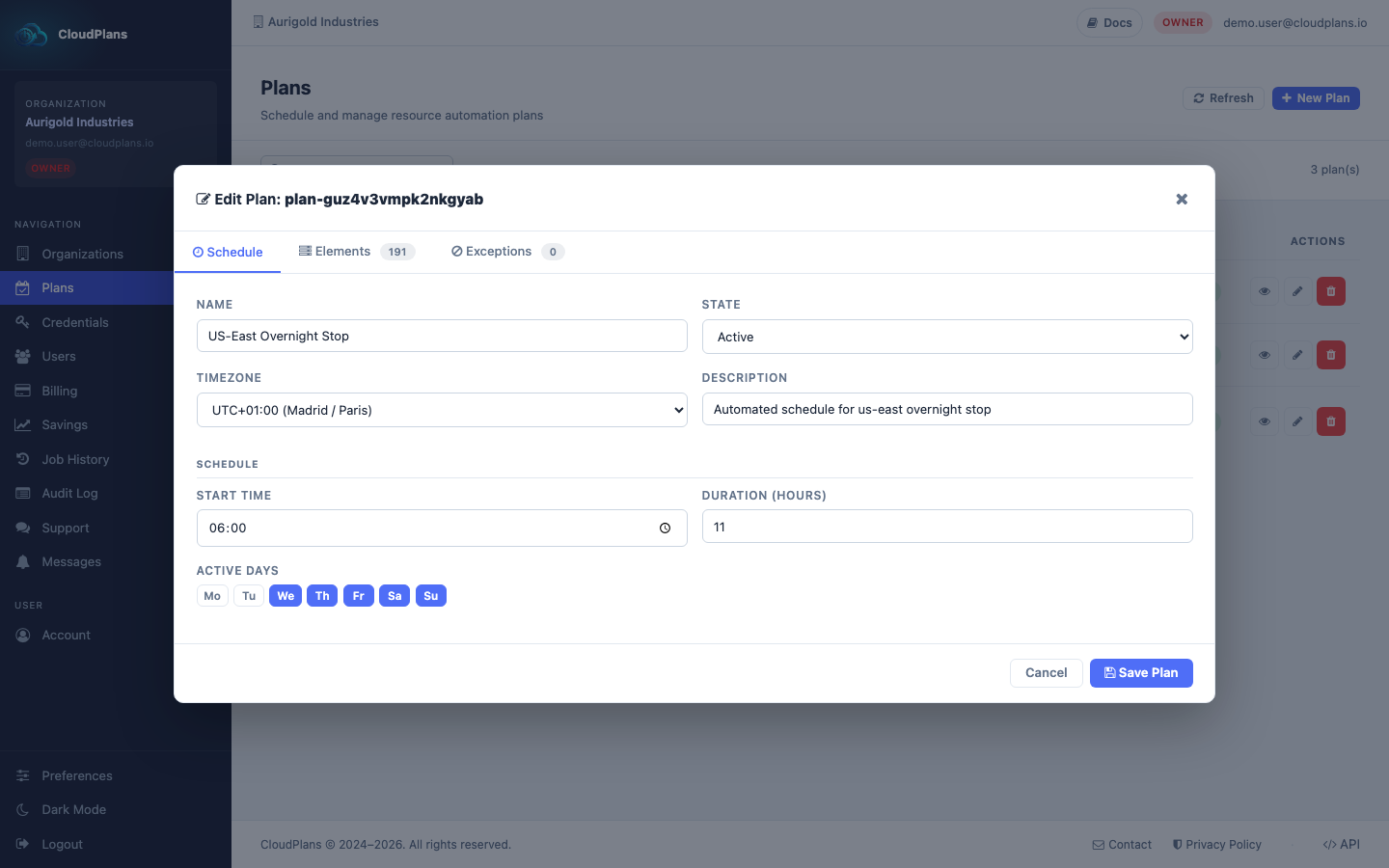
- Once you update any configuration, click Save Plan to apply the changes